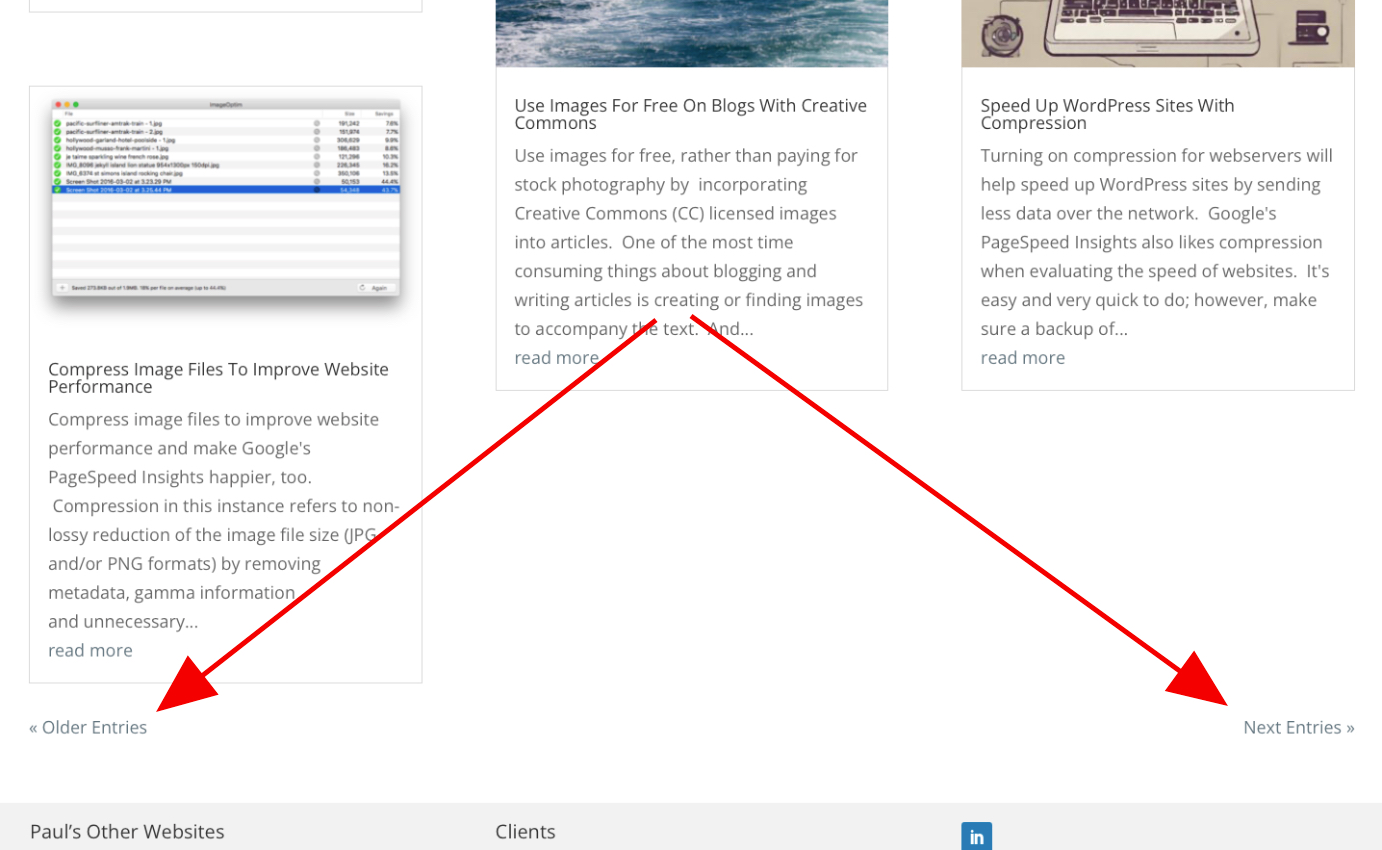
UPDATE! Divi has addressed this issue, so this post has been updated to reflect new functionality. Using the Post Navigation module in Divi, it is now very easy to change the text for the older/newer posts text links in blog posts.
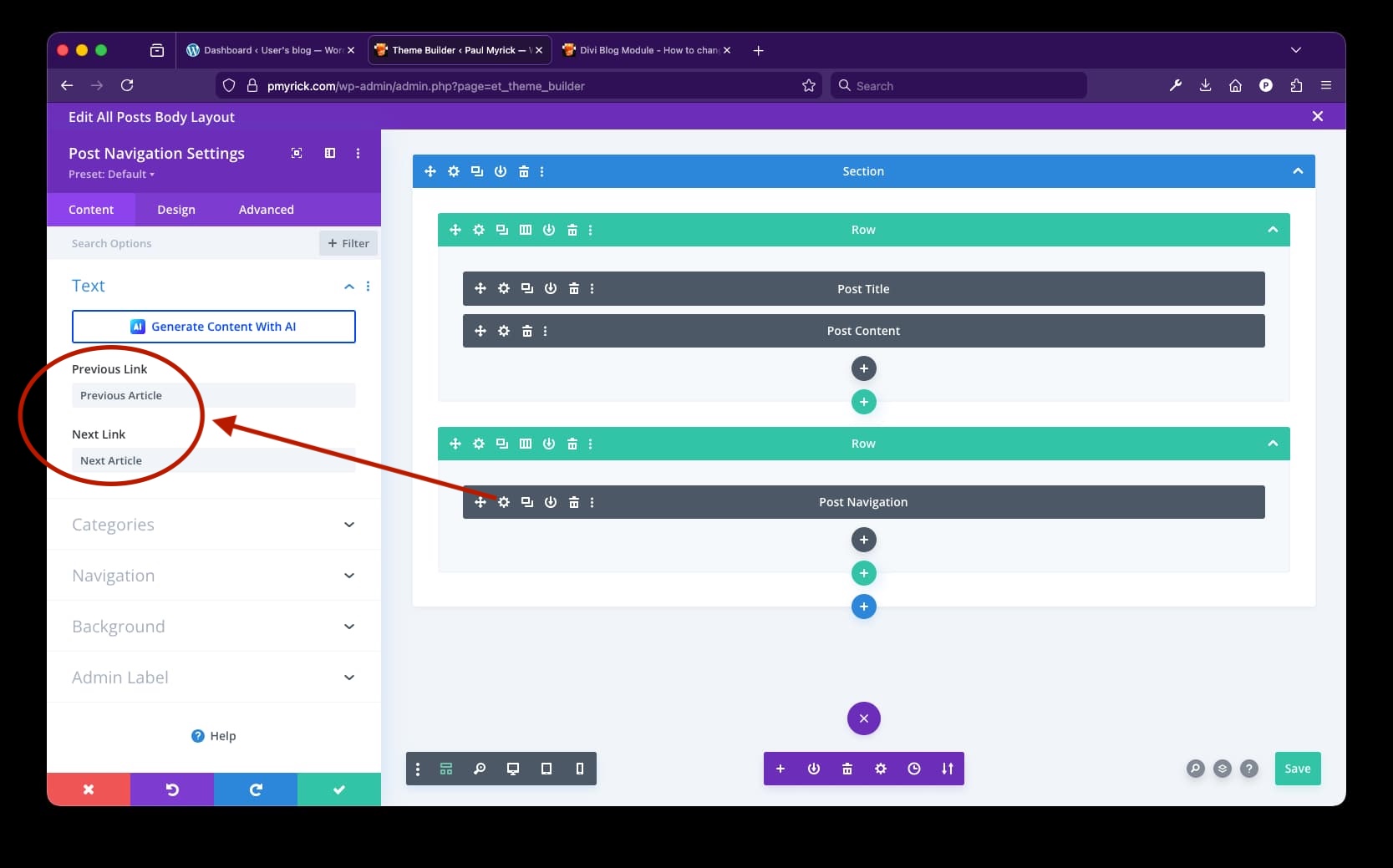
Simply add the "Post Navigation Settings" module to your blog post OR if using theme builder, add the module to your posts body layout so it will automatically appear in every post. Click the settings icon (gear icon) and change the "Previous Link" and "Next Link" text to whatever is appropriate. For posterity's sake, the outdated instructions and css for this post remain below with strike-through.
The inability to easily change the "older/newer posts" text displayed by default in the Divi Blog Post module is quite annoying; however, there is a relatively simple solution available using CSS. To make this work, place the following CSS in the custom CSS input area of the Divi theme options general panel. Change the value contained in the "content" element to the desired text (where it currently says 'Older Stale Posts' and 'Newer Fresher Posts').
/* Customize paging text for Divi blog module */
.et_pb_ajax_pagination_container .pagination > .alignleft a:before {
content: 'Older Stale Posts';
visibility: visible;
}
.et_pb_ajax_pagination_container .pagination > .alignleft a {
visibility: collapse;
}
.et_pb_ajax_pagination_container .pagination > .alignright a:before {
content: 'Newer Fresher Posts';
visibility: visible;
}
.et_pb_ajax_pagination_container .pagination > .alignright a {
visibility: collapse;
}